
Profile Border
Profile Border is a display widget that quickly generates a combination of Avatar + Border.
It supports:
- Member avatars
- Audience avatars
- Direct image upload
- Custom frame materials: upload your own frame images (PNG / APNG / WebP) to generate dedicated profile borders (see below)
Unlike gameplay modes, the Profile Border additional component does not handle voting or settlement. Its only job is to generate a stylish profile border, which you can place anywhere in your live layout through your streaming tool.
Setting Details#
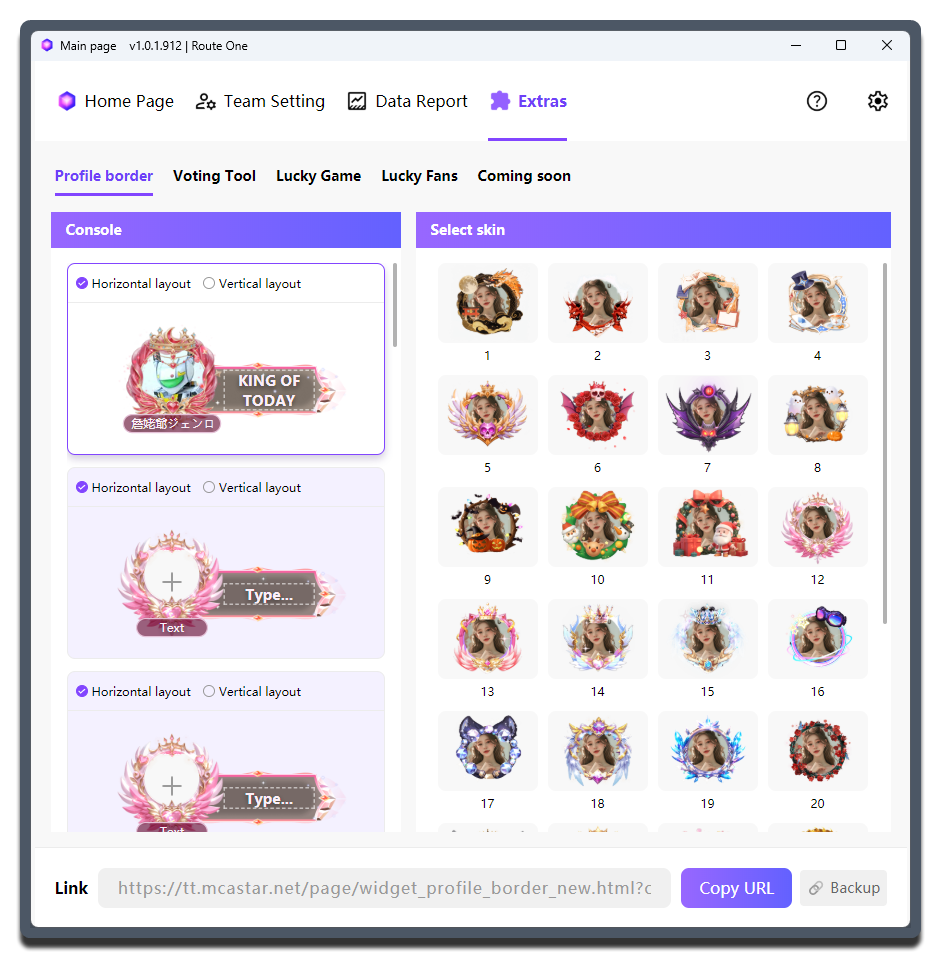
| Setting | What it does | When to change it | Notes |
|---|---|---|---|
Console |
Manages and edits multiple profile border cards | Use it when one live session needs multiple members, different ranking positions, or several presentation versions | Select the target card first, then edit the avatar and text so you do not change the wrong card |
Horizontal layout / Vertical layout |
Changes the layout of the avatar and the info bar | - | - |
Avatar Selection (click the + in the center of the border) |
Opens the Recommend and History tabs for choosing viewer or creator avatars, and also supports direct image upload |
- | Recommend prioritizes avatars from the current round, recent use, and the team avatar pool |
Text / main text bar |
Fills in the main display text next to the avatar | Good for content that viewers can understand at a glance, such as TOP1, Leader, or WIN |
You can press Enter to insert a line break |
Select skin |
Switches the appearance of the border for the current card across the Official Frames and Custom tabs |
Adjust it when you want a consistent visual style for the whole session, or different skins for different member identities | After switching skins, check the avatar crop and text length again; the Custom tab holds the borders you created yourself (see below) |
Copy URL |
Copies the current widget link | - | It is recommended to copy it again after each change |
Using it in your streaming tool
You need to copy the standalone link for the currently selected Profile Border widget and load it into your streaming tool.
Each Profile Border widget needs to be copied separately. This design gives you enough flexibility to adjust the layout based on the actual live room setup.
Blank template
If you only want to show the avatar itself without an extra decorative frame, choose the blank template and keep or leave the text fields empty as needed.
Custom Avatar Frames#
In the Custom tab of Select skin, you can upload your own transparent frame assets to create dedicated profile borders. Once created, they are used with a single click just like official frames, and multiple config cards can share the same custom frame.
Creation flow:
- Click
Create Framein theCustomtab - Click
Upload Frame Assetand choose a local image (PNG including APNG animation, or WebP, up to 5MB) - In the editing stage on the left, drag and scroll-zoom the asset, or use the
Scale/Horizontal/Verticalsliders on the right to adjust the asset's position relative to the default avatar (the two stay in sync in real time) - Fill in the
Frame Nameand choose aText Style - Confirm the three fit checks at the bottom (Transparency / Avatar core not covered / No edge cropping), then click
Confirm & Save
Asset specifications:
| Item | Requirement |
|---|---|
| Format | PNG (including APNG animation), WebP |
| Size | ≤ 5MB |
| Dimensions | Static images are automatically scaled down proportionally to within 300 × 300 after upload; resize animated images to within 300 × 300 before uploading to preserve the animation |
| Quantity | Up to 20 frames (the N/20 created counter shown on the page is authoritative) |
| Name | 1-30 characters |
Management and error handling:
- Custom frames are saved to your account. Hover a card to
Editit (readjust the position or replace the asset) orDeleteit (requires confirmation; when you delete a frame in use, the related cards automatically fall back to the default frame) - A custom frame only replaces the frame image; the text backdrop and text color still follow the text-box style of the official template
- If the asset fails to load in the widget, it automatically falls back to the official default frame, so no blank is shown